XenShot
Screenshots with a five-capture buffer. Snip a region or capture every monitor, keep your five most recent captures one click away, then annotate, crop or copy text with local OCR. $4.99 one-time purchase. Runs on Windows 10 and later.
What it does
Capture a selected screen region using the overlay or hotkey (Ctrl+Shift+X). Saved immediately to your configured snip folder.
Capture the full virtual desktop across all connected monitors (Ctrl+Shift+F). Can be stored in a separate folder from snips.
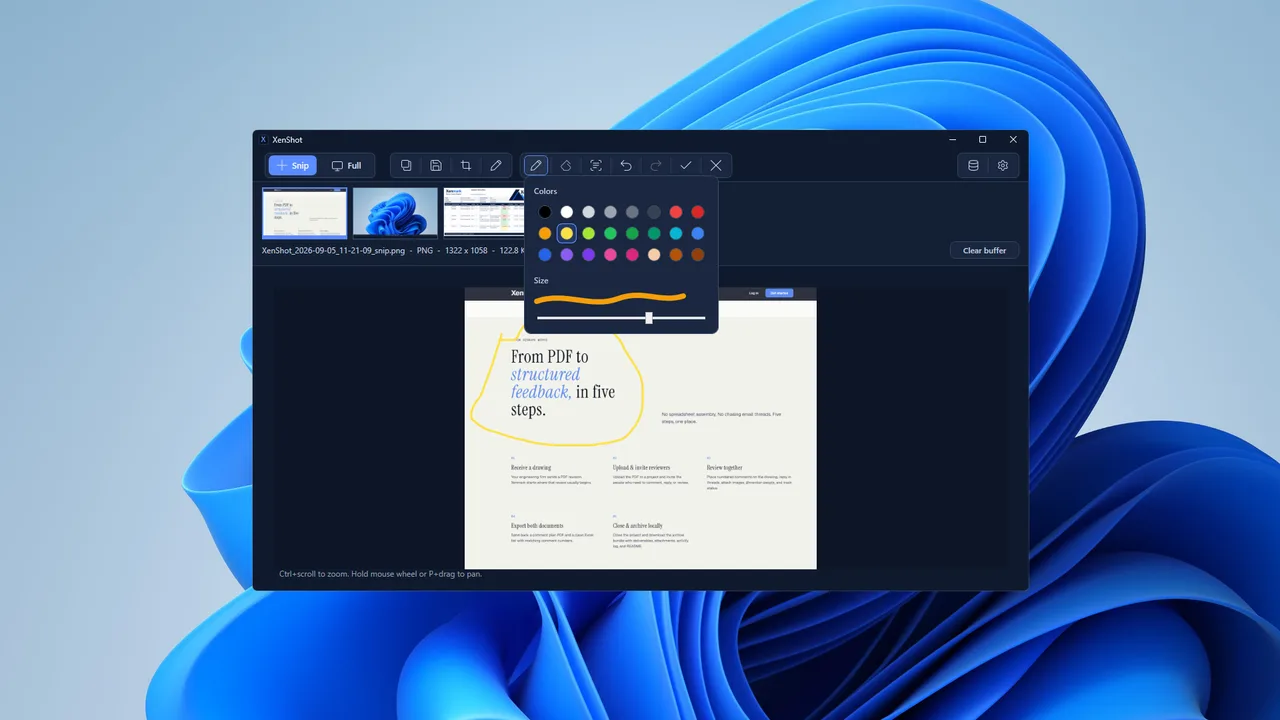
The five most recent captures are shown as thumbnails. Select one to preview, copy, crop, edit, or save as another file. Clearing the buffer does not delete saved files.
Crop, draw with a pen in 24 colours, erase, undo, redo, and save the result as a new file. The original capture is not overwritten.
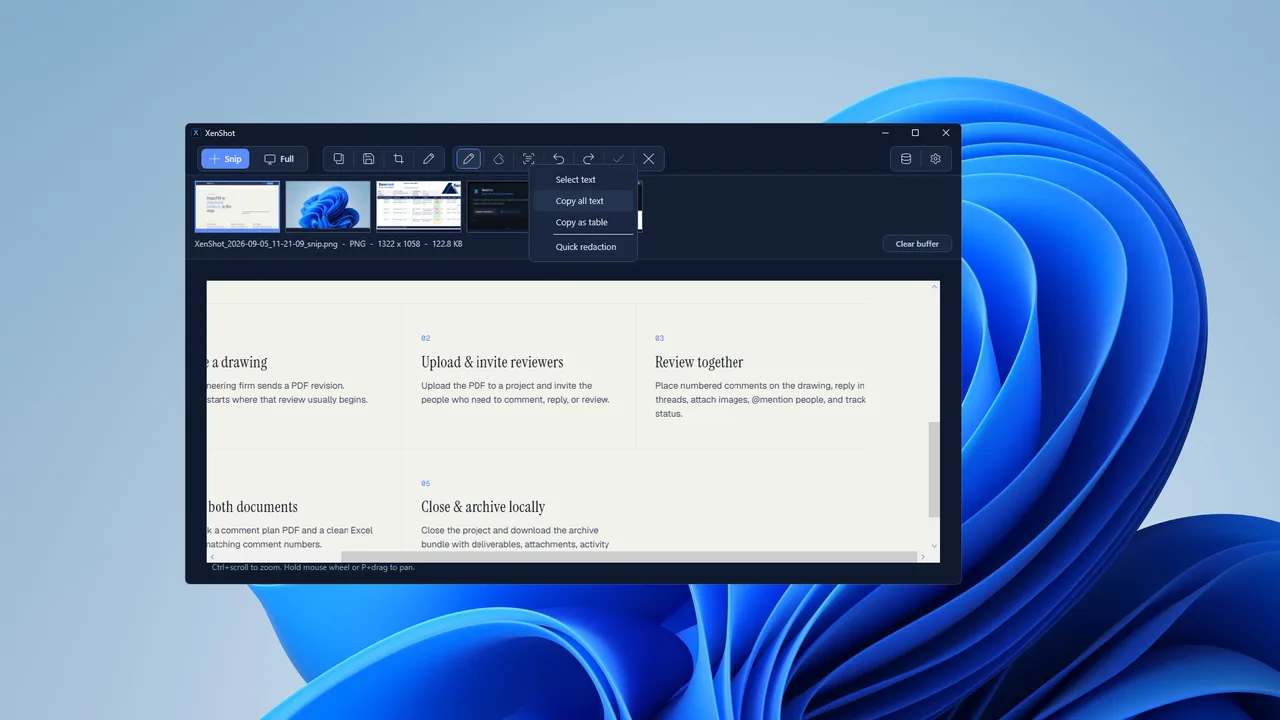
Select text in a screenshot and copy it, copy all of it, copy it as a table, or quickly redact it. Text recognition runs on your PC using the Windows OCR engine. Check recognised text and table layout before relying on it.
Screenshots
Technical details
- All captures run locally. No files are sent anywhere.
- Captures are saved automatically to user-selected folders on your device.
- Snip and Full captures can use separate storage folders.
- The buffer shows the last 5 saved captures. Clearing the buffer does not delete saved files.
- Missing storage folders block capture until fixed or recreated.
- Diagnostic log files are written locally to %APPDATA%\Xenshot\logs on your device.
- XenShot has no feature for uploading logs, screenshots, or local app files to Xenthum.
- Every capture is also copied to the clipboard.
- A notification appears after each capture, with an Edit button that opens it straight into annotation.
- Captures are correct on multi-monitor setups with mixed display scaling.
- Preview supports Ctrl + mouse wheel zoom and panning.
- Default hotkeys: Ctrl+Shift+X for Snip, Ctrl+Shift+F for Full. Hotkeys can be changed, and an optional setting makes the Print Screen key start a snip.
- Settings include startup, always on top, filename pattern, format, JPG quality, and capture delay.
- Runs on Windows 10 (version 1809 and later) and Windows 11, on x64 and ARM64 PCs.
What it does not do
- Record video
- Sync captures to cloud storage
- Edit text inside images
- Maintain unlimited screenshot history
- Replace a full image editor
Frequently asked questions
No. Clear buffer only empties the row of recent captures. Your saved files stay where they are.
No. XenShot captures a region you select or the full desktop across all monitors.
On your PC, using the OCR engine built into Windows. No image or text is sent anywhere.
As PNG or JPG files in folders you choose. Snips and full captures can go to separate folders.